

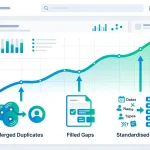

CRM Duplicate Records Automation Setup
Most HubSpot workflows are built around the assumption that a contact exists once. A lead scoring workflow adds points every time a form is submitted. A lifecycle stage automation moves a contact forward the moment a deal closes. None of that logic accounts for the same person existing as two records, which means every duplicate quietly breaks the automation built on top of it, twice as often as anyone notices.
CRM duplicate records automation usually gets approached backwards. Teams build workflows to work around duplicates rather than building a workflow that removes them before they cause damage. This guide covers how to set it up the other way round.
Why CRM Duplicate Records Automation Usually Fails
The common approach is a native HubSpot workflow that checks for an exact email match before running a sequence, or a rule that suppresses a second welcome email if the same email address appears twice. That catches the easy case and misses almost everything else.
A contact who exists once with an email address and once with only a LinkedIn URL will not trigger an exact-match suppression rule at all. Both records run through the automation independently, both get scored, both trigger separate lifecycle changes, and reporting on that contact ends up split across two records with no way to reconcile which numbers belong where.
What a Working Setup Looks Like
CRM duplicate records automation that actually holds up has three parts, in order:
- Detection that goes beyond exact match. Matching on email address alone misses the pairs that matter most. A working setup checks similar name within the same company, partial name match, LinkedIn URL, and mobile number alongside email.
- A review step before anything merges. Fully automatic merging is where most teams get burned — a false-positive merge can silently combine two different people who happen to share a name and company. A queued review step catches this before it reaches your CRM.
- A trigger that runs continuously, not once. New duplicates enter through forms, imports, and integrations every week. A one-time cleanup workflow solves the backlog and then quietly falls behind again within a month or two.
Setting This Up in HubSpot
HubSpot's native workflow tools can suppress or route contacts based on exact-match duplicate properties, but they cannot detect the fuzzy matches described above on their own. To get real CRM duplicate records automation working, the detection layer needs to sit ahead of your existing workflows:
1. Run detection first, separately from your marketing and sales workflows. Duplicate detection should be its own process, not a side effect of a lead-routing workflow.
2. Route flagged pairs to a review queue. Whoever owns data quality — often RevOps or sales ops — reviews and approves merges rather than letting a workflow merge automatically.
3. Let your existing workflows run on the cleaned data. Lead scoring, lifecycle automation, and sequences all become more reliable once they are running against single, deduplicated records instead of split ones.
4. Schedule detection to run on a recurring basis. Weekly or daily, depending on your inbound volume, so duplicates are caught before they have time to trigger multiple workflows.
How EazyMatch AI Handles CRM Duplicate Records Automation
EazyMatch AI is built to sit exactly where this setup needs it: ahead of your existing HubSpot or Pipedrive workflows, running continuously.
Duplicate detection uses multi-field AI matching across email, similar name within the same company, partial name match, LinkedIn URL, and mobile number, so it catches the pairs that exact-match automation misses entirely. Flagged pairs go into a review queue rather than merging automatically, so a person confirms every match before anything changes in your CRM.
Because checks run on an ongoing basis, new duplicates entering through forms, imports, or integrations get caught before they have a chance to run through your lead scoring, lifecycle, or sequence automations twice.
Step 1: Connect your HubSpot or Pipedrive account
Step 2: Run checks across contacts and companies
Step 3: Review the queue of flagged duplicates
Step 4: Approve updates, which only apply once you sign off
Try EazyMatch AI free →
Set up a continuous check ahead of your existing workflows. No credit card required.
FAQ
Q: Can HubSpot's native workflows fully automate duplicate detection on their own?
A: Not on their own. Native workflows can act on exact-match duplicate properties, but they don't detect the fuzzy matches, like a contact split across an email-only record and a LinkedIn-only record, that account for a large share of real duplicates.
Q: Should duplicate merges be fully automatic?
A: Generally no. A queued review step protects against false-positive merges, where two different people who share a name and company get combined by mistake. Detection can run automatically; merging should stay reviewed.
Q: How often should the automation run?
A: For most teams, weekly is enough. High-volume inbound portals, with lots of form submissions or integrations creating contacts, benefit from a daily check instead.
Build the Automation on Clean Data, Not Around Duplicates
CRM duplicate records automation works when detection runs ahead of your other workflows, not as a patch applied after something breaks. If you're still working through the manual side of this first, see the guide to finding and merging duplicate contacts in HubSpot or the reasons your CRM automation keeps failing because of duplicates for the underlying pain point this setup solves.
Try EazyMatch AI free →
Connect your CRM and see what's currently breaking your automations.