

HubSpot Deduplication, Step by Step
Most HubSpot portals have a data quality routine that looks like this: someone notices a problem, exports a list, works through it in a spreadsheet, fixes what they can, and promises to do it properly next quarter. The problem is not effort. It is that the finding and checking is manual, so it only happens when someone has a free afternoon.
This post walks through how to hand that finding and checking to EazyMatch AI, so HubSpot deduplication and the rest of your data quality work happen on a routine instead of a whim, while every change still goes through a person.
Where Native HubSpot Deduplication Stops
HubSpot gives you a solid starting point. Contacts are deduplicated on email address, companies on domain, and the duplicate management tool suggests pairs to merge. For an exact duplicate, that works.
The hard cases are different. Picture a contact who exists twice: once from a webinar form with a work email and no LinkedIn URL, and once added by a rep from LinkedIn with a LinkedIn URL and no email. Same person, same company. Because one record has no email, the native tools have nothing to compare, and the pair stays split. Activity, deals and lifecycle stage are divided across two records. For more on the native options, see how to find and merge duplicate contacts in HubSpot.
Step 1: Connect HubSpot
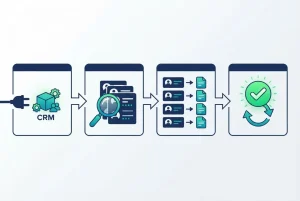
Sign up for EazyMatch AI and connect your HubSpot portal. EazyMatch AI reads your contacts and companies so it can analyse them. Connecting does not change anything in your portal: nothing is written back to HubSpot until you approve it in Step 4.
Step 2: Run the Checks
Run a scan across your portal. EazyMatch AI looks at your data from several angles at once:
- Contact duplicates matched on email address, similar names within the same company, partial name matches, LinkedIn URL and mobile number
- Company duplicates matched on LinkedIn company URL and website domain
- Missing data on contacts and companies
- Job title standardisation, so "VP Mktg" and "Vice President, Marketing" line up
- ICP checks against the companies you actually want to sell to
- GDPR and data retention flags on records that may be past their retention period
- Employment check, which flags contacts who appear to have left the company on their record
The scan also produces a data quality score for the portal, which becomes your baseline.
Step 3: Review the Suggestions
This is the step that makes it safe. Each suggestion is shown with its reasoning. For a duplicate pair, you see which fields matched, which differed, and why the two records are thought to be the same person or company. In the webinar-and-LinkedIn example, you would see the matching name and company and the LinkedIn URL, side by side with the email-only record.
Review is where the people who know the accounts make the call. A sales ops manager can confirm a merge in seconds when the evidence is laid out, and reject the rare pair that only looks alike.
Step 4: Approve the Updates
Approve the merges and updates you agree with. Only approved changes sync back to HubSpot. Nothing is merged or edited automatically, which matters because a wrong merge combines two people's history and is far harder to undo than a duplicate is to leave in place.
Step 5: Make It a Routine
None of this replaces good habits at the point of entry. Forms with required fields, one owner for imports and a rule that reps search before creating a contact all reduce how much each scan finds. They do not remove the need for it, because every integration and import adds records in its own way.
Here is where the automation comes in. The slow parts of HubSpot deduplication and data quality work are finding the problems and gathering the evidence. EazyMatch AI does both on every scan. Your team only spends time on decisions.
That makes a regular routine realistic:
- Monthly for portals that grow quickly through forms, events and imports
- Before every large campaign, so lists go out clean (see how to deduplicate HubSpot lists before your next campaign)
- After every import, to catch duplicates created on the way in
- Quarterly for the employment check on key accounts and customers
Track the data quality score each time. A rising score is the evidence that the routine is working; a sudden drop usually points to a specific import or integration worth investigating.
What Changes for the Team
- Reps stop working the same person under two records
- Marketing sends fewer duplicate emails and fewer to people who have left
- RevOps gets reports and routing that run on one record per person
- Leadership gets a single data quality number to follow
For how this fits into a wider programme, see automating CRM data quality: a practical guide for RevOps.
Try EazyMatch AI free →
Connect HubSpot and run your first scan.
FAQ
Q: Does EazyMatch AI replace HubSpot's native deduplication?
A: It adds to it. HubSpot's tools handle exact matches on email and domain. EazyMatch AI finds the duplicates that need more than one field to spot, such as the same person stored with an email on one record and only a LinkedIn URL on the other.
Q: Is HubSpot deduplication with EazyMatch AI fully automatic?
A: The finding and evidence gathering is. The decision is not. Every merge and update is reviewed and approved by a person before it syncs to HubSpot.
Q: Does EazyMatch AI work with HubSpot companies as well as contacts?
A: Yes. Companies are matched on LinkedIn company URL and website domain, and checked for missing data and ICP fit.
Let the Software Find It. Let Your Team Decide.
Data quality slips when finding the problems depends on someone having time. Hand the finding, matching and scoring to EazyMatch AI, keep approval with the people who know the accounts, and HubSpot deduplication becomes a routine your portal can rely on.
Want a guided first scan of your HubSpot portal?