
HubSpot Data Cleanup Tool Checklist
Open any HubSpot portal that has been active for more than a year and the pattern is the same. Contacts imported from three different tools now exist twice or three times. Deal owners are still assigned to reps who left the company. Job titles are a mix of abbreviations, full titles, and blank fields. None of it happened on purpose. It happened because nobody ran a cleanup before it built up.
This checklist covers the 10 steps a proper HubSpot data cleanup tool should walk through, in the order that actually matters. Skip ahead if you already know your biggest problem, or work through the full list if you have not audited your portal in a while.
Why a HubSpot Data Cleanup Tool Beats a Manual Spreadsheet Export
Most teams try this the hard way first: export contacts to a spreadsheet, sort by name or email, and manually scan for duplicates. It works for a few hundred records. It falls apart past a few thousand, because the duplicates that matter most are not exact matches. A contact with an email on one record and a LinkedIn URL on the other will not show up when you sort a spreadsheet by email address.
A dedicated HubSpot data cleanup tool checks multiple fields at once, so it catches the pairs that a manual export or HubSpot's own native duplicate manager will miss. For the full native versus third-party breakdown, see HubSpot native tools vs third-party apps compared.
The 10-Step Checklist
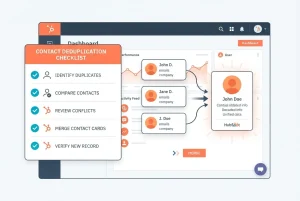
1. Run a full duplicate contact scan. Do not rely on HubSpot's built-in duplicate manager alone. It matches almost exclusively on exact email address, so it misses contacts that share a name and company but were entered under two different emails.
2. Check company records for duplicates too. The same organisation often exists twice under slightly different names, for example "Acme Ltd" and "Acme Limited." Deals and contacts split across both records, which distorts revenue attribution per account.
3. Flag contacts missing critical fields. Email address, company association, and job title are the fields most workflows and segments depend on. A contact missing any of them will silently fall out of the automations built on top of that field.
4. Standardise job titles. "VP Sales," "VP of Sales," and "Vice President, Sales" read as three different values to any filter or list. Group the common variants into one canonical form before they break a segmentation rule.
5. Review lifecycle stage accuracy. Contacts often get stuck on an outdated lifecycle stage after a deal closes or falls through. Stale lifecycle stages throw off reporting on funnel conversion rates.
6. Validate email and phone formatting. Malformed email addresses and inconsistently formatted phone numbers cause deliverability issues and failed dials that are easy to miss until a campaign underperforms.
7. Check for internal and test contacts. Records created during onboarding, testing, or integration setup often stay in the live database and skew engagement and list-size metrics.
8. Review GDPR and consent status. Contacts with no valid legal basis for the data you hold, or who unsubscribed some time ago, should be flagged before they are included in any new campaign or export.
9. Confirm deal and association integrity. When contacts are merged or companies are consolidated, verify that deal history, notes, and activity timelines carried over correctly rather than being dropped.
10. Set up ongoing monitoring. A one-time cleanup degrades again within months as new records enter through forms, imports, and integrations. Recurring checks catch the drift while it is still small.
How EazyMatch AI Works as a HubSpot Data Cleanup Tool
EazyMatch AI covers this entire checklist inside one workflow connected directly to your HubSpot portal.
Duplicate detection uses multi-field AI matching across email, similar name within the same company, partial name match, LinkedIn URL, and mobile number. That means a contact with an email on one record and only a LinkedIn URL on the other, the exact pair HubSpot's native tools miss, gets caught and flagged for review. Company duplicates are checked separately, using LinkedIn company URL and website domain.
Beyond duplicates, EazyMatch AI flags missing data, standardises job titles in bulk, runs ICP checks, and surfaces GDPR and data retention issues. Every one of these is a step from the checklist above, run automatically and continuously rather than manually once a year.
Nothing changes in your CRM without approval. EazyMatch AI surfaces the suggested fix; a human reviews and approves it before anything syncs back to HubSpot.
Step 1: Connect your HubSpot account
Step 2: Run checks across contacts and companies
Step 3: Review the queue of duplicates, gaps, and inconsistencies
Step 4: Approve updates, which only apply once you sign off
Try EazyMatch AI free →
Run this checklist against your own HubSpot portal in minutes. No credit card required.
FAQ
Q: How often should I run a HubSpot data cleanup?
A: A full pass through this checklist works well quarterly for most teams. Portals with high inbound volume from forms and integrations benefit from more frequent, lighter checks, since duplicates and gaps accumulate continuously rather than all at once.
Q: Will a HubSpot data cleanup tool merge records automatically?
A: With EazyMatch AI, no. The tool identifies and queues suggested merges and fixes, but every change requires human approval before it applies to your live HubSpot data.
Q: Does this checklist apply to Pipedrive too?
A: The same principles apply, though HubSpot-specific fields like lifecycle stage are unique to HubSpot. See the guide to removing duplicates in Pipedrive for the Pipedrive-specific version of this process.
Keep the Cleanup From Becoming a Recurring Project
A HubSpot data cleanup tool only earns its place in your stack if it prevents the same cleanup project from resurfacing every year. Duplicates are the step that causes the most downstream damage. See the full guide to finding and merging duplicate contacts in HubSpot and the guide to deduplicating HubSpot companies and deals for the deep-dive version of steps 1 and 2.
If you want to stop duplicates from entering in the first place rather than cleaning them up after the fact, see how to prevent duplicate contacts from entering HubSpot — or, for imports specifically, how to import contacts into HubSpot without creating duplicates.
Try EazyMatch AI free →
Connect HubSpot and get your first data quality score in minutes.