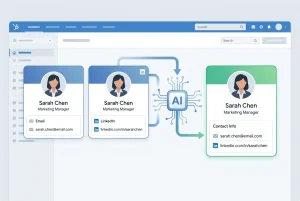
Here is a scenario that plays out in HubSpot portals every day: a contact attended one of your webinars six months ago and submitted a form with their personal Gmail address. Last week, a sales rep entered the same person manually using their work email. Two records. Same person. Neither flagged as a duplicate.
HubSpot did not catch it — and it will not, because its built-in deduplication only matches on an exact email address. Change one character, use a different address, or omit it entirely, and HubSpot treats it as a brand new contact.
This is the core problem with HubSpot duplicate contacts: the issue is not just the records you know about. It is the ones that look like new contacts but are not.
Why HubSpot's Native Duplicate Detection Falls Short
HubSpot does have a duplicate management tool. You can find it under **Contacts → Actions → Manage duplicates**. It presents pairs of records that HubSpot has likely matched, and you can choose to merge or dismiss each pair.
The limitation is in the matching logic. HubSpot identifies duplicates primarily through **exact email address matching**. Two records only get flagged if they share the same email — or in some cases, a combination of name and company that HubSpot considers close enough.
That sounds reasonable until you think through how contacts actually end up in your CRM:
- A contact submits a form with a personal email, then later connects on LinkedIn, and a rep adds them manually with a work email
- A prospect's name is entered as "Jon" in one record and "Jonathan" in another
- One record has a mobile number but no email; the duplicate has an email but no mobile number
- A contact is imported from a CSV with a LinkedIn URL, but no email address was captured
In every one of these cases, HubSpot's native tool will not flag a duplicate. The records sit in your CRM as separate contacts — inflating your database, corrupting your segments, and causing your team to work the same lead twice without knowing it.
The Duplicate HubSpot Will Never Catch (A Real Example)
Consider this pair of records in your HubSpot portal:
**Record A**
- Name: Sarah Mitchell
- Email: [email protected]
- Company: Acme Corp
- LinkedIn URL: *(blank)*
- Mobile: *(blank)*
**Record B**
- Name: S. Mitchell
- Email: *(blank)*
- Company: Acme Corp
- LinkedIn URL: linkedin.com/in/sarahmitchell
- Mobile: +44 7700 900123
These are the same person. They share a company, a near-identical name, and a matching LinkedIn profile. But HubSpot will never merge them, because there is no shared email address — the one field it uses to identify a match.
Your CRM now has two Sarah Mitchells. One might be in a nurture sequence. The other might be owned by a different rep. Your marketing team is sending to one; your sales team is calling the other. Neither knows.
This is not an edge case. It is one of the most common duplicate patterns in any active HubSpot portal.
How EazyMatch AI Catches What HubSpot Misses
EazyMatch AI was built specifically for this problem. Rather than relying on a single field, it uses multi-field AI matching to identify duplicates across your entire contact database.
For **contacts**, EazyMatch AI checks across:
- **Email address** — including partial matches and domain variants
- **Similar name within the same company** — catches "Jon" vs "Jonathan" at the same organisation
- **Partial name match** — identifies abbreviated or misspelt names across records
- **LinkedIn URL** — the most reliable unique identifier for a professional contact; if two records share a LinkedIn URL, they are the same person
- **Mobile number** — flags records where the same phone number appears against two separate contacts
For **companies**, EazyMatch AI matches on:
- **LinkedIn company URL** — a consistent, unique identifier regardless of how a company name is formatted
- **Website domain** — catches "Acme Corp" and "Acme Corporation" entered separately but pointing to the same domain
Going back to our example, EazyMatch AI would flag Record A and Record B immediately. They share a company, a name variant, and a LinkedIn URL. That is more than enough to surface them as a high-confidence duplicate pair — ready for your review.
How It Works: Four Steps to a Clean HubSpot Database
EazyMatch AI is designed to fit into your existing workflow without creating risk. Every suggestion requires human approval before anything changes in your CRM.
**Step 1 — Connect HubSpot**
Connect your HubSpot portal to EazyMatch AI. The setup takes minutes and requires no technical configuration.
**Step 2 — Run checks**
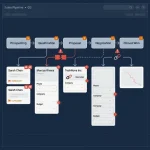
EazyMatch AI scans your contacts and companies, applying its multi-field matching logic across your entire database. Duplicate pairs are surfaced with a confidence score, and the matched fields are highlighted.
**Step 3 — Review suggestions**
You review each flagged pair — or work through them in bulk. You can see exactly why EazyMatch AI flagged each record (shared LinkedIn URL, matching mobile, similar name at the same company) before making a decision.
**Step 4 — Approve updates**
Only approved merges are pushed back to HubSpot. Nothing changes in your CRM without your confirmation. Your data stays under your control throughout.
Beyond Duplicates: What Else EazyMatch AI Flags
Duplicate detection is the most urgent data quality issue in most HubSpot portals, but it is not the only one.
EazyMatch AI also identifies:
- **Incomplete contacts** — records missing email, mobile, or LinkedIn URL
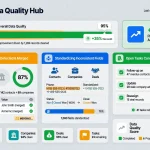
- **Data quality scoring** — each contact and company is scored against key business fields, so you can see where your database is weakest
- **Job title inconsistencies** — normalises "VP Sales", "VP of Sales", and "Head of Sales" so your segmentation works correctly
- **GDPR / retention flags** — surfaces records that may need review under your data retention policy
These checks run alongside duplicate detection, giving you a full picture of your CRM data quality in one place.
FAQ
**Q: Why does HubSpot create duplicate contacts even with deduplication turned on?**
HubSpot's deduplication works at the point of contact creation for certain entry methods, such as form submissions where the email address already exists. But it does not catch duplicates created through manual entry, CSV imports with different email addresses, or integrations that sync contacts from other platforms. The result is that duplicates accumulate over time even in portals where deduplication is active.
**Q: Will EazyMatch AI automatically merge my HubSpot contacts?**
No — and this is intentional. EazyMatch AI surfaces duplicate pairs for your review and shows you exactly why each pair was flagged. You approve the merge; EazyMatch applies it to HubSpot. Nothing in your CRM changes without your explicit sign-off. This protects you from accidental data loss, which can happen when merges are run automatically without human review.
**Q: What happens to deal history and notes when contacts are merged?**
When EazyMatch AI merges two HubSpot contacts, all associated deals, notes, calls, meetings, and activities from both records are retained and attached to the merged contact. No engagement history is lost.
## The Contacts Hiding in Plain Sight
Every HubSpot portal has them — contacts that appear to be separate people but are the same person under two records. HubSpot's native tool will catch the obvious ones. The ones where an email matches exactly, and the name is the same. But the real duplicates — the Sarah Mitchells with a Gmail address on one record and a LinkedIn address on another — stay hidden until something goes wrong. If you want to put a number on it, we broke down the real cost of bad CRM data - from wasted rep hours to failed campaigns.
EazyMatch AI was built to find exactly those contacts. Also using Pipedrive? The same problem exists there. Read 5 signs your Pipedrive data is silently killing your pipeline.
Connect your HubSpot portal and see your duplicate contacts in minutes. No credit card required.