
Clean CRM Data Migration Checklist
Every CRM migration surfaces the same problem. The data that looked manageable in the old system arrives in the new one and becomes impossible to ignore - duplicate contacts counted twice in every report, incomplete records highlighted in your onboarding dashboard, inconsistent job titles breaking automation rules before the first campaign goes out.
The migration did not create the problem. It made it visible.
If you are planning a move to or from HubSpot or Pipedrive - or consolidating two CRMs after a company merger - a clean CRM data migration is the difference between carrying the mess across and leaving it behind. This guide covers what to fix, in what order, before the import begins.
Why a Clean CRM Data Migration Starts Before the Move
A migration amplifies data quality issues in two specific ways.
First, it forces a complete inventory. Every contact, company, and deal record is examined as part of the move. Issues that were easy to overlook during day-to-day operations become visible when someone is mapping and transferring every field.
Second, it locks in your current state. Once the migration completes and your team starts working in the new system, the data you brought across becomes the foundation - including every duplicate, every gap, and every inconsistency. Fixing those issues post-migration is significantly harder because your team is learning a new system at the same time as managing a data cleanup.
A clean CRM data migration is not just tidier. It reduces post-migration support load, improves first-day reporting accuracy, and ensures your new system is built on a reliable foundation from the start. For the business case in full, see the real cost of duplicate CRM records - the same costs carry into the new system if the data does.
Step 1: Find and Merge Duplicate Contacts
Duplicates are the first priority because they affect everything downstream. A contact that exists twice in your old system arrives in the new one twice. Reports double-count them. Email sequences reach out to them twice. Deal history splits across two records.
Before migrating:
- Run a full deduplication check - do not rely on your CRM's native duplicate detection alone. Built-in tools use exact-match logic and will miss contacts that share no email address but clearly represent the same person. A contact with an email on one record and a LinkedIn URL on the other is the same person - and exact-match tools will not flag them.
- Review flagged pairs before merging - confirm which record should be the primary (typically the one with more attached data or deal history) before any merge is applied.
- Confirm deal history is retained - for Pipedrive in particular, verify that deals, notes, and activity logs on the duplicate record will be consolidated onto the primary, not discarded.
For HubSpot portals, see the full guide to finding and merging duplicate contacts in HubSpot. For Pipedrive, see how to remove duplicates in Pipedrive without losing deal history.
Step 2: Deduplicate Companies
Company duplicates are consistently overlooked. Teams focus on contacts and miss the organisations - and the downstream problems are identical. Deals attached to "Acme Ltd" and "Acme Limited" as separate company records arrive in the new system as two distinct organisations, with revenue attribution split between them.
Check for:
- The same company entered under slightly different legal names ("Bright Ventures" vs "Bright Ventures Ltd")
- Organisations registered with and without country or department suffixes
- Company records created by different reps who independently added the same organisation
EazyMatch AI checks for company duplicates using LinkedIn company URL and website domain - surfacing organisations entered under different names but sharing the same domain or LinkedIn presence.
Step 3: Fill Critical Missing Fields
A migration maps fields from the old system to the new one. Records with empty fields arrive in the new system with empty fields. If your email campaigns rely on first-name personalisation and 20% of your contacts have no first name recorded, that problem transfers with them.
Priority fields to audit before migration:
- Email address - contacts without an email address are largely unusable in marketing and sales workflows
- Company association - contacts without a linked company record create reporting gaps and attribution errors
- Job title - frequently missing for contacts entered quickly by reps in the field
- LinkedIn URL - increasingly important as a matching, enrichment, and verification anchor
Flag every contact missing one or more critical fields. Decide whether to enrich them (with a tool or manual research), archive them, or migrate them tagged for follow-up - before the import starts.
Step 4: Standardise Job Titles
Job titles in CRMs are a mess in almost every active portal. "VP Sales", "VP of Sales", "Vice President Sales", and "Vice President, Sales" are four separate values in your filters, segments, and automation rules - but they represent the same role.
If your new system uses job title fields to route contacts to sequences, personalise messaging, or trigger workflows, inconsistent titles will break that logic immediately after migration.
Standardise before you migrate. Group the most common title variants into canonical forms and apply them consistently across your database. This is significantly easier to do in bulk before a migration than to correct record-by-record afterwards.
Step 5: Review GDPR and Data Retention Flags
A migration is a data processing event. Under GDPR and similar frameworks, transferring personal data from one system to another requires a lawful basis. If your database contains contacts for whom you have no valid consent record, no legitimate interest documentation, or who have previously opted out of communications, migrating them into a new system does not resolve that.
Before migrating:
- Flag contacts with no valid legal basis for holding
- Identify contacts who have unsubscribed from all communications
- Review records that fall outside your data retention period
This is also a practical database health step. Removing records you should not be holding reduces your total record count and improves the relevance of the database you migrate.
Step 6: Run a Final Check Before the Import
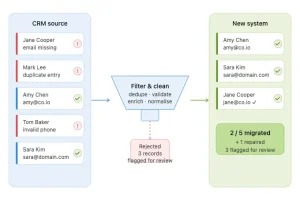
Once duplicates are merged, gaps are addressed, titles are standardised, and retention flags are resolved, run one final pass to confirm a clean CRM data migration before the import begins. The goal is to confirm that:
- No duplicate pairs remain
- Critical fields are populated across the active contact base
- Obvious data entry errors are corrected - wrong domains, test contacts, internal staff who should be excluded from the CRM
If your cleaned data is being imported into HubSpot, follow how to import contacts into HubSpot without creating duplicates so the import itself doesn't reintroduce the duplicates you just removed.
How EazyMatch AI Supports Migration Prep
EazyMatch AI covers the full pre-migration checklist in a single workflow - without manual trawling through thousands of records.
Duplicate detection uses multi-field AI matching across email, name, company, LinkedIn URL, and mobile number. It catches the contacts exact-match dedup misses - the pairs that share no email address but are clearly the same person.
Missing data detection flags incomplete contact and company records across your full database, so you know exactly what gaps exist before you migrate them.
Data quality scoring gives you a before-and-after snapshot of database quality - a clear baseline to confirm the migration starts from a clean state.
Job title standardisation normalises inconsistent title variants across your contact base in bulk.
GDPR / retention flags surfaces records that may need review before they are processed through a migration.
Nothing is automatic. Every suggestion is reviewed and approved before any change is applied to your CRM.
Step 1: Connect your CRM (HubSpot or Pipedrive)
Step 2: Run checks across contacts and companies
Step 3: Review the queue - duplicates, missing fields, title inconsistencies, retention flags
Step 4: Approve updates - changes apply to your CRM only with your sign-off
Try EazyMatch AI free →
Start your migration prep today. No credit card required.
FAQ
Q: How far in advance of a migration should I start the data cleanup?
A: For a database of up to 10,000 contacts, a thorough cleanup using EazyMatch AI can typically be completed within a few days - covering duplicate review, missing data flagging, and title standardisation. Larger databases or portals with high duplicate rates will take longer. Starting the cleanup process several weeks before the planned migration date gives you time to work through the review queue without rushing.
Q: Do I need to clean both contacts and companies before migrating?
A: Yes. Company duplicates cause the same downstream problems as contact duplicates and are often overlooked. EazyMatch AI runs separate deduplication checks for contacts and companies, covering both in the same workflow.
Q: What if I'm migrating between HubSpot and Pipedrive specifically?
A: EazyMatch AI connects to both HubSpot and Pipedrive. If you are moving data between the two systems, you can run a cleanup check on the source CRM before the export, and then run a follow-up scan on the target CRM after import to catch any issues introduced during the transfer.
Start Clean, Stay Clean
CRM migrations expose the data quality issues that have been quietly accumulating since the system was first set up. The teams that come out of a migration with a functional, reliable CRM are the ones who did the cleanup work before the move - not the ones who hoped the new system would resolve old data problems.
Try EazyMatch AI free →
Run your pre-migration data audit and go into the migration with a clean baseline.