Pipedrive Merge Contacts: Full Guide
Duplicate contacts in Pipedrive are rarely the result of carelessness. They come in through CSV imports, form submissions, integrations, and manual entry by different team members. By the time you notice the problem, a contact may exist twice in your CRM — with deal history split across both records and no obvious way to tell which record is authoritative.
This guide covers how to merge contacts in Pipedrive using the native tool, where that tool falls short, and how to handle the duplicate pairs it will not catch.
How to Merge Contacts in Pipedrive (Native Tool)
Pipedrive includes a built-in contact merge feature. Here is how to use it:
Step 1 - Open the contact you want to keep
Navigate to **People** in your Pipedrive sidebar and open the primary contact record — the one you want to retain after the merge.
Step 2 - Access the merge option
In the top-right area of the contact record, click the three-dot menu (⋮) and select **Merge with another person**.
Step 3 - Search for the duplicate
Use the search box to find the duplicate contact. Pipedrive will display matching contacts based on name or email.
Step 4 - Confirm the merge
Select the contact to merge, review the fields, and confirm. Pipedrive retains the primary record and transfers all associated deals, activities, and notes from the duplicate.
That is the manual process for a single pair. It works well when you have already identified the duplicate yourself — but it does not help you find duplicates across your database.
How Pipedrive Identifies Duplicate Contacts
Pipedrive includes native duplicate detection accessible via **People → Find duplicates** (available in most plans).
The Pipedrive merge contacts suggestions are generated based on name similarity and matching email addresses. If two contacts share the same email address or have names close enough to exceed a similarity threshold, Pipedrive surfaces them as a suggested pair.
This works for the obvious cases. It does not work for those who actually cause problems.
The Duplicates Pipedrive Merge Won't Catch
Consider this scenario:
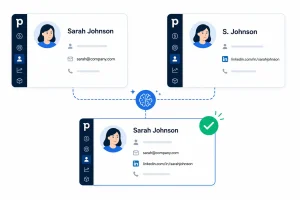
--Record A--
- Name: Sarah Johnson
- Email: [email protected]
- LinkedIn URL: (blank)
--Record B--
- Name: S. Johnson
- Email: (blank)
- LinkedIn URL: linkedin.com/in/sarah-johnson-acme
These are the same person. One record came in via a CSV import; the other arrived via a form integration that captured only the LinkedIn URL. Pipedrive will not suggest a merge — the names are not close enough, and there is no shared email address to link them.
This is the most common type of duplicate in a mature Pipedrive database: two records representing the same person that were created from different data sources, each containing a different subset of contact information. The Pipedrive merge contacts feature will not surface these without a tool that matches on more than name and email.
How to Bulk Merge Contacts in Pipedrive
Pipedrive does not offer native bulk merging. You can only merge contacts in pairs at a time through the interface.
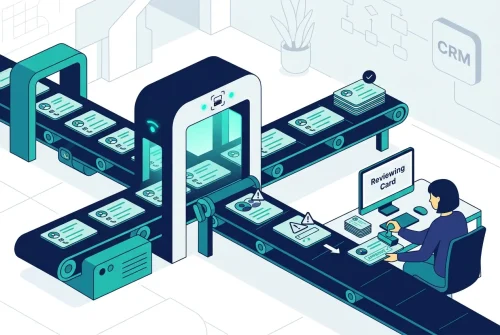
If you need to clean up a large volume of duplicates — after an import, a CRM migration, or years of accumulated data from multiple sources — the native approach is impractical. Common workarounds include exporting contacts to a spreadsheet, identifying duplicates manually using formulas, and then re-importing or merging records one by one. For large databases, this takes hours and introduces its own risk of error.
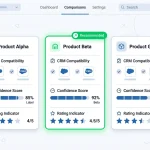
A dedicated deduplication tool handles this at scale. EazyMatch AI scans your entire Pipedrive contact database, surfaces duplicate pairs with confidence scores and matched field highlights, and lets you review and approve merges in bulk — without exporting data or building spreadsheet logic.
How EazyMatch AI Handles Pipedrive Merge Contacts
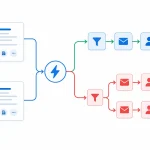
EazyMatch AI connects directly to Pipedrive and applies multi-field AI matching to find the contact duplicates that Pipedrive's native tool consistently misses. It matches across:
-Email address — direct match
-LinkedIn URL — unique identifier that persists even when names are formatted differently across sources
-Partial name matching - catches variants like "S. Johnson" → "Sarah Johnson" within the same organisation
- Mobile number — cross-referenced across records
- Name within the same company - identifies contacts with the same company association and similar names
The example above — Sarah Johnson and S. Johnson, no shared email, different name format — is exactly the type of pair EazyMatch AI is built to catch. It uses fuzzy matching across multiple fields simultaneously, so partial information in one record is cross-referenced against partial information in another.
Nothing changes without your review. EazyMatch AI surfaces each pair and shows you exactly which fields matched and why. You approve the merge before it reaches Pipedrive. No automatic changes, no risk of unintended data loss.
FAQ
Q: Can Pipedrive automatically detect and merge duplicate contacts?
Pipedrive surfaces suggested duplicate pairs based on name similarity and shared email address. It does not auto-merge — you confirm each merge manually. It does not detect duplicates where the email fields differ and names do not closely match.
Q: What happens to deals when you merge contacts in Pipedrive?
When you merge two contacts, all deals, activities, notes, and emails associated with the duplicate are transferred to the primary record. No deal data is lost. EazyMatch AI applies the same principle — all associations are retained after an approved merge.
Q: Is there a way to bulk merge contacts in Pipedrive?
Pipedrive does not offer native bulk merging. Merges are processed one pair at a time through the interface. For bulk deduplication, a tool like EazyMatch AI processes large volumes of contact duplicates within a single review workflow.
Clean Contacts, Cleaner Pipeline
The Pipedrive merge contacts tool handles the obvious cases. The problem is that most real-world duplicates are not obvious — they come from partial data, multiple integrations, and different naming conventions across sources.
If your Pipedrive database has grown through imports, integrations, or team expansion, the native merge tool will not find most of your duplicates. Start with the [Pipedrive data quality guide](/pipedrive-data-quality-warning-signs) to understand the full scope of the problem, then use EazyMatch AI to surface and resolve what Pipedrive leaves behind.
Connect your Pipedrive account and see your full duplicate picture in minutes. No credit card required.
*Internal links: /pipedrive-data-quality-warning-signs (Post #2) | /remove-duplicates-pipedrive (Post #3) | /fuzzy-matching-crm (Post #4)*
*LinkedIn repurpose angle: "Pipedrive has a merge contacts feature. But it won't catch the most common type of duplicate in your CRM — the pair in which both records contain different information about the same person. Here's what it misses and how to find it."*