
HubSpot Duplicate Contacts in Your Lists
The campaign is scheduled for Thursday at 9am. The copy is approved, the design is signed off, and the list has been built for a week. The one thing nobody has checked is whether the people on that list are each on it once.
Usually they are not. HubSpot duplicate contacts sit inside send lists as two separate records for one person, and each record gets its own email. The short answer to fixing it: check the list for people rather than for email addresses, merge what you find, then send. This guide covers how to do that, and where the manual check stops working.
Why HubSpot Lists Still Contain Duplicates
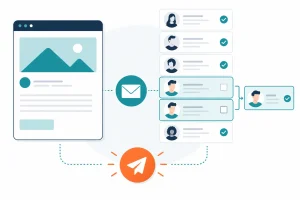
HubSpot does two useful things by default. It only allows one contact record per email address, and if a contact sits on several lists in the same send, that contact receives the email once. Both protections work on the contact record and its email address.
Neither helps when one person has two records with two different identifiers. That happens constantly:
- A prospect downloads a guide with a personal email, then a rep adds them later with a work email
- An event list is imported with a slightly different spelling of the same name
- A contact is created from LinkedIn with a profile URL and no email at all, alongside an older record that has the email and no LinkedIn URL
- Someone changes company and is added again instead of being updated
To HubSpot these are different people. To the person in question, they are one inbox owner receiving your campaign twice. For the wider picture of how these records form, see how to find and merge duplicate contacts in HubSpot.
What HubSpot Duplicate Contacts Do to a Campaign
The damage is specific, and most of it never shows up in the campaign report.
- Double sends. Two records with two addresses that both reach the same person means two copies of the same email. It reads as careless, and it is the kind of thing that earns an unsubscribe or a spam complaint.
- Opt-outs that do not hold. When someone unsubscribes, the opt-out is recorded against the address they unsubscribed from. The duplicate record with the other address stays subscribed, so the next campaign reaches someone who has already asked you to stop.
- Split engagement. Opens and clicks land on one record, form fills and sales activity on the other. Lead scoring sees two lukewarm contacts instead of one engaged buyer.
- Broken suppression and personalisation. A customer suppression list only suppresses the record marked as a customer. The duplicate still gets the prospecting email, possibly with an empty first name token.
- Paying twice. HubSpot bills marketing contacts by tier, and each duplicate set as a marketing contact counts towards it.
The email-specific costs are covered in more depth in the hidden cost of duplicates in your email marketing list.
The Pre-Send Check: Deduplicate a HubSpot List in Five Steps
Run this before any send that matters.
Step 1: Freeze the list. If it is an active list, clone it as a static list so the audience stops changing while you check it.
Step 2: Review HubSpot's own suggestions. Open the manage duplicates tool from the contacts index page and work through the pairs it has found. It is the quickest win, and it clears the obvious cases first. The tool is part of HubSpot's Professional and Enterprise plans, so on other plans start at step 3.
Step 3: Export and sort by person, not by email. Export the list with first name, last name, company, email, phone and LinkedIn URL. Sort by company, then last name. Duplicates that share no email sit next to each other in that view: "Jon Smith" and "Jonathan Smith" at the same company, or the same name with a work address on one row and a personal address on the next.
Step 4: Merge, do not delete. Merging keeps the activity history, list memberships and subscription status of both records on the one that survives. Deleting one throws half of that away. Merges in HubSpot cannot be undone, so check each pair before you confirm.
Step 5: Recheck suppression. After merging, confirm that unsubscribed, bounced and customer contacts are still excluded from the send.
Where the Manual Check Runs Out
The five steps work, and they have three limits.
First, a spreadsheet sort only finds the duplicates a person can spot by eye. Nobody reliably catches "S. Mitchell" against "Sarah Mitchell" across 20,000 rows. Second, the hardest pair has nothing obvious in common: one record with an email address and no LinkedIn URL, one with a LinkedIn URL and no email. They are the same person, and an email-based check will never join them. That gap is explained in what fuzzy matching is and why exact-match dedup misses duplicates. Third, the check is out of date the moment it finishes. The next import or form fill adds new duplicates, and the next campaign starts from the same place.
Hunting for HubSpot duplicate contacts by hand before every campaign is not a process a busy marketing team keeps up for long.
How EazyMatch AI Finds the Duplicates Before You Send
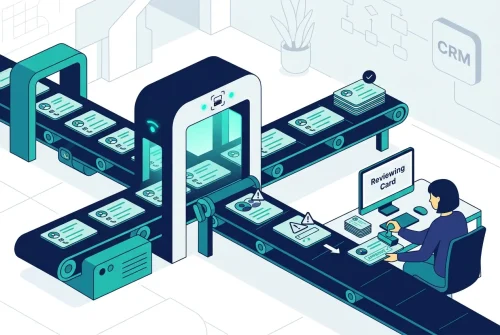
EazyMatch AI connects to HubSpot and runs this check across the whole database, so every list you build from it starts clean. It uses multi-field AI matching for contacts across:
- Email address
- Similar name within the same company
- Partial name match
- LinkedIn URL
- Mobile number
That is what catches the email-only record and the LinkedIn-only record as one person. Company duplicates are matched on LinkedIn company URL and website domain, which matters for account-based sends. Alongside duplicates, it flags contacts with missing data, the ones that would go out with an empty personalisation token, and gives you a data quality score to track between campaigns.
Nothing changes in HubSpot automatically. Every suggested merge goes to a review queue, and only the ones a person approves are synced back.
Step 1: Connect your CRM (HubSpot or Pipedrive)
Step 2: Run checks
Step 3: Review suggestions
Step 4: Approve updates - changes only reach your CRM after human approval
Try EazyMatch AI free →
Run a scan before your next send and see how many people are on your list twice.
FAQ
Q: Does HubSpot remove duplicates from a list automatically?
A: It prevents two contact records sharing one email address, and a contact on several lists in one send only receives the email once. It does not join two records that belong to the same person under different email addresses, or records with no email at all.
Q: How often should I deduplicate my HubSpot lists?
A: Before any large or high-stakes send, and after every bulk import. Teams that send weekly are better served by a recurring database check than a list-by-list one. See how to import contacts into HubSpot without creating duplicates to stop them at the source.
Q: Will merging contacts affect their subscription status?
A: Merging combines the two records into one, including email subscription information. Review opt-out status on the surviving record after any merge, and before you send.
Send Once, to the Right Person
A campaign is only as good as the list behind it. HubSpot duplicate contacts turn one buyer into two recipients, one opt-out into half an opt-out, and one clear engagement signal into two weak ones. Check for people, not email addresses, merge before you send, and put a recurring check in place so the next campaign does not need a rescue.
Planning a large send and want a second opinion on the list?